
Give every engagement campaign a clear place in the event.
Campaigns connect an event, its eligible candidates, and a public participation experience. Use the campaign as the umbrella for structured engagement, then choose the campaign type that fits the activity—such as Voting Campaigns.
Features
Campaigns Tied to an Event
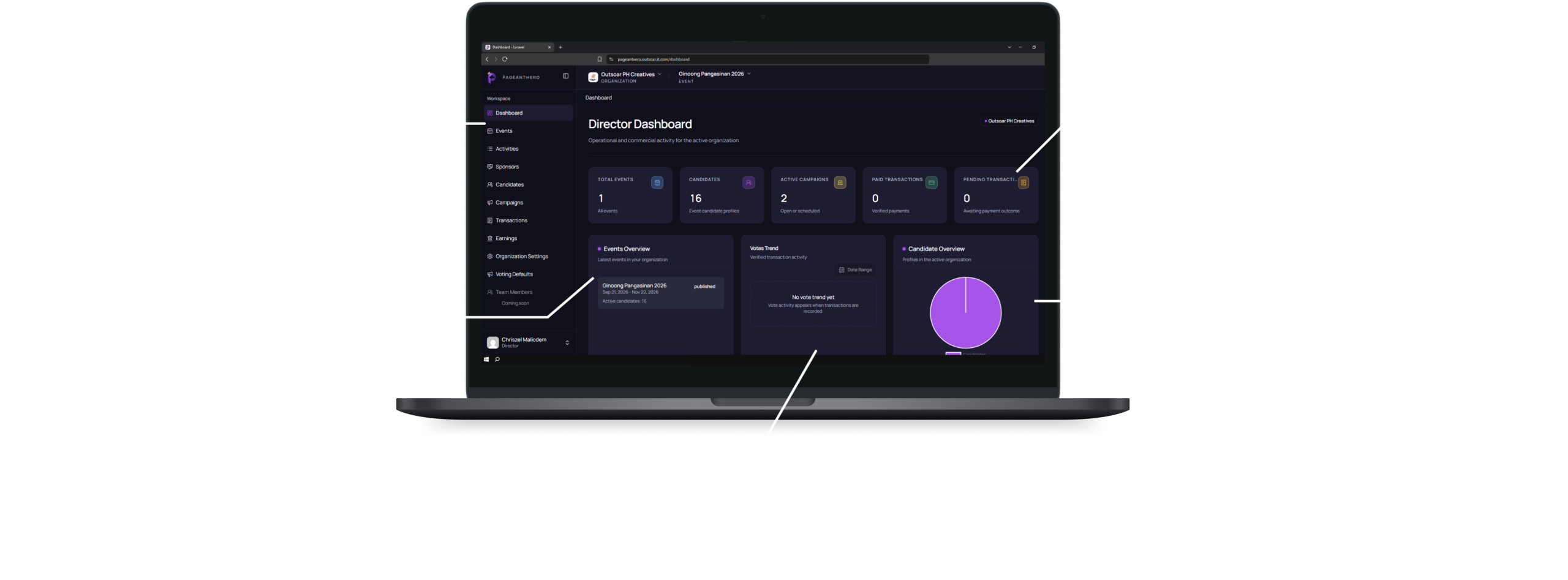
Dashboard
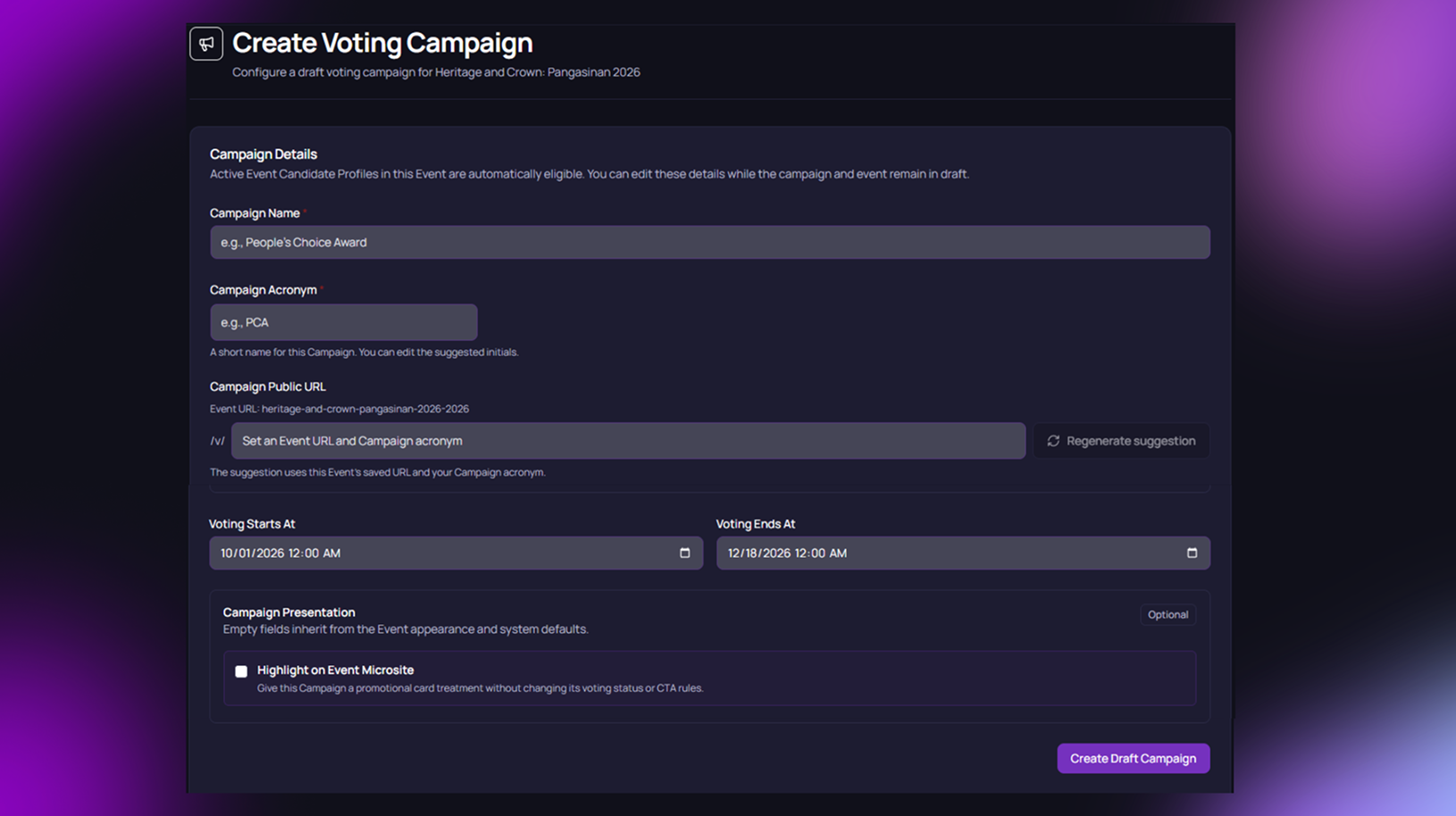
Create a Campaign Under an Event
Pick an event first, then set up a campaign that belongs to it.
Microsite
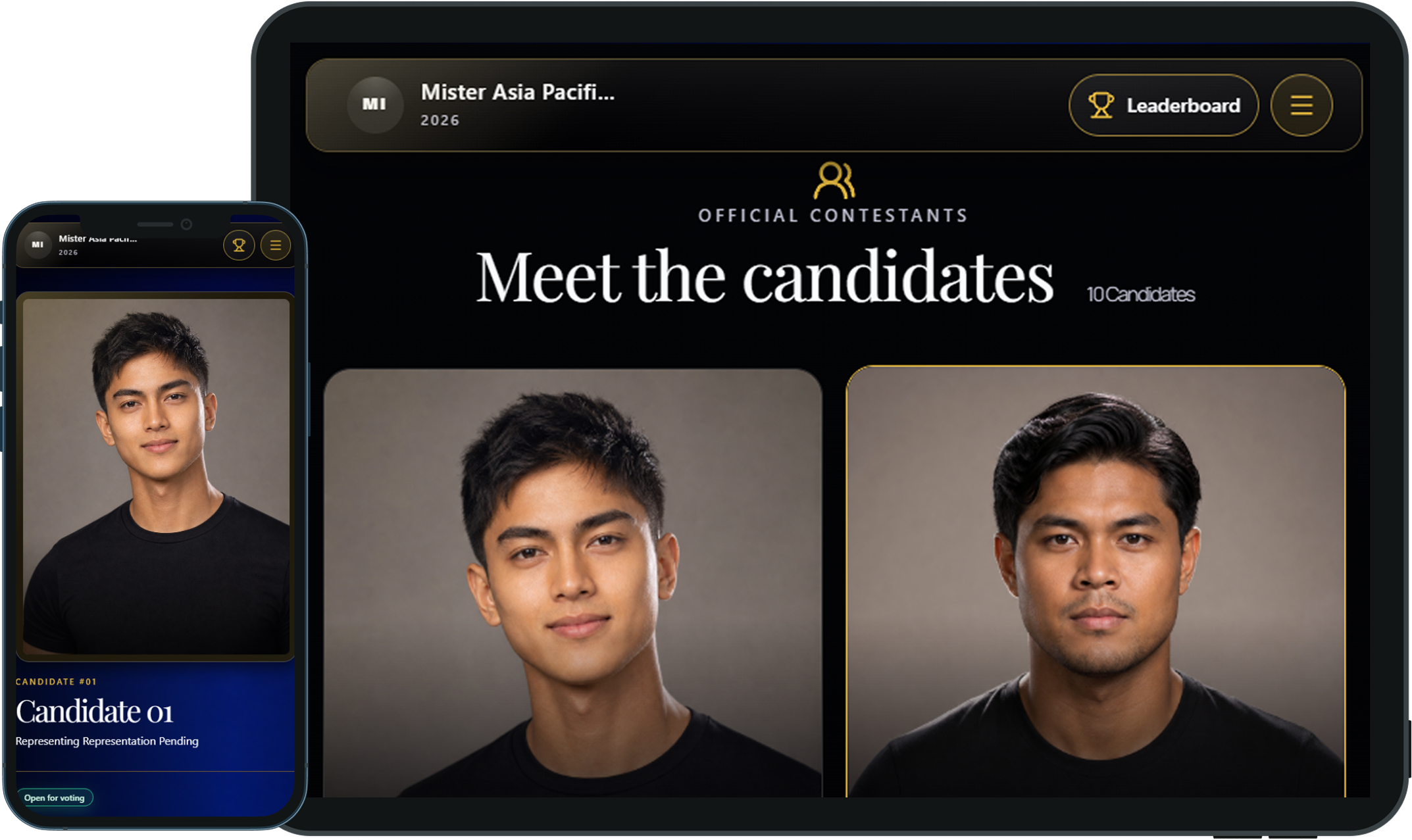
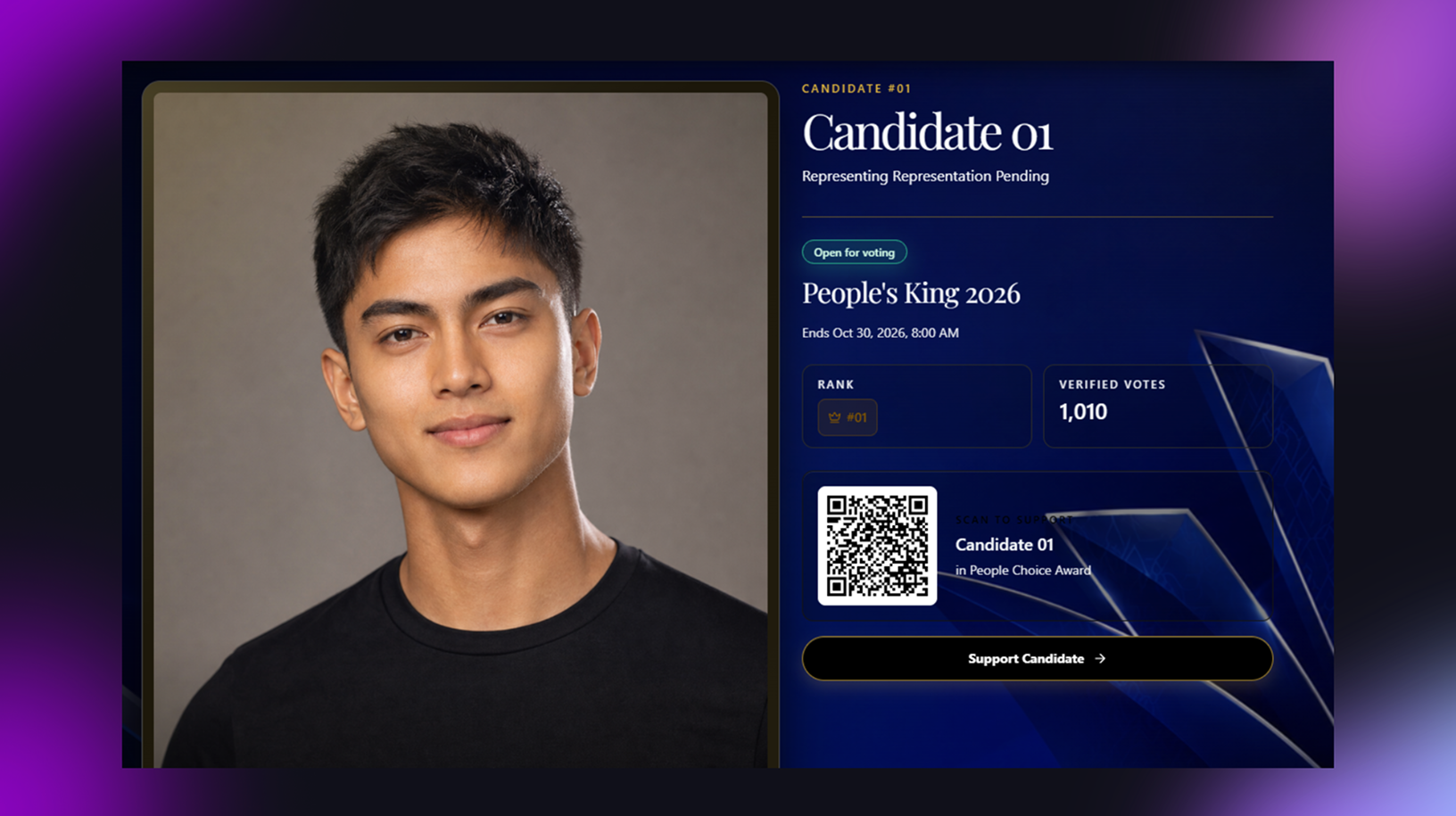
Campaigns on Candidate Pages
Each candidate’s page shows the campaigns for their event.
Setup Before Launch
Dashboard
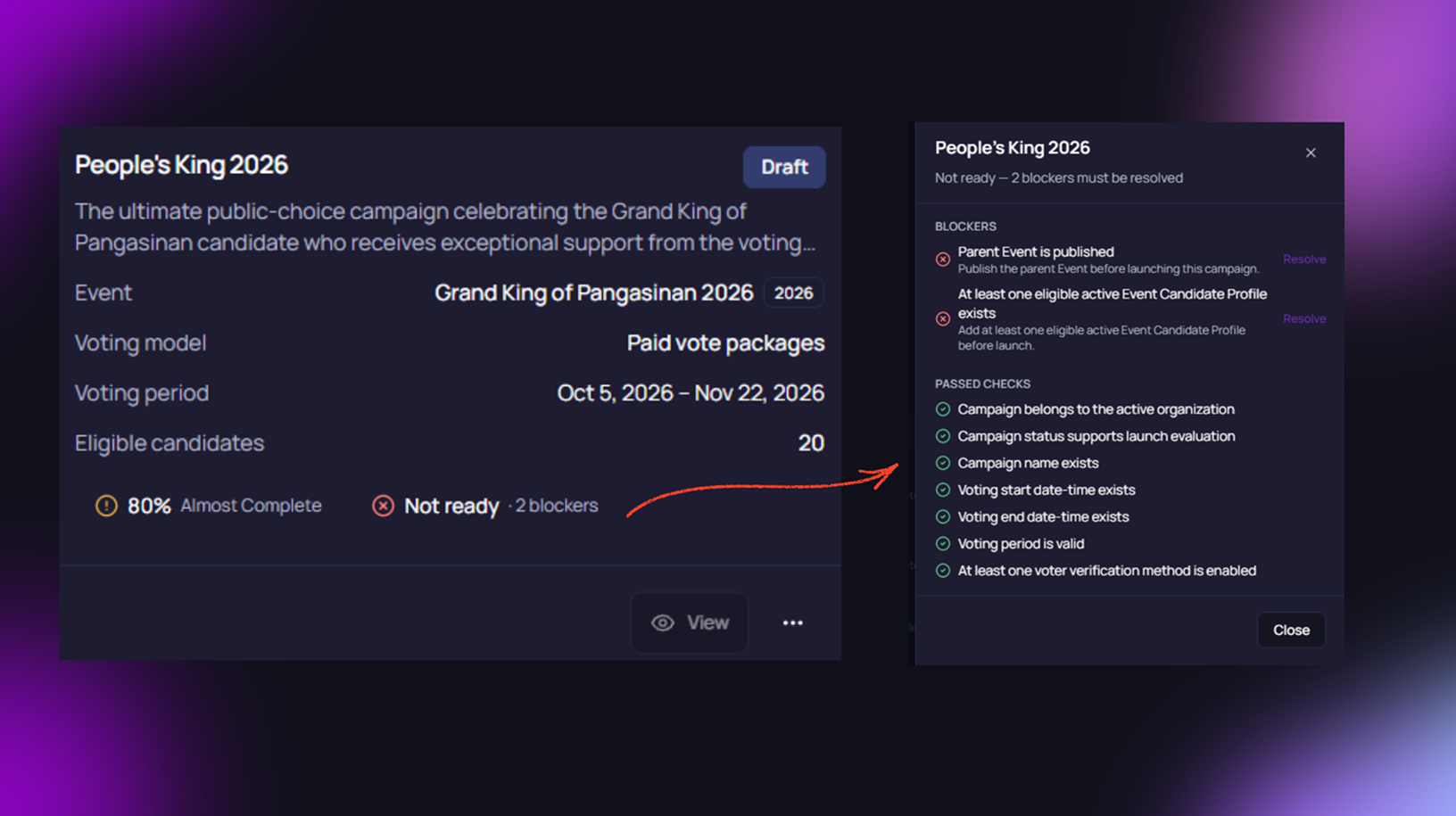
Check the Launch Checklist
See what is still missing, like dates or active candidates, before a campaign goes live.
Microsite
Your Setup Shows on the Campaign Card
The campaign name and description you set up appear on the card that visitors see.
Clear Campaign Status
Dashboard
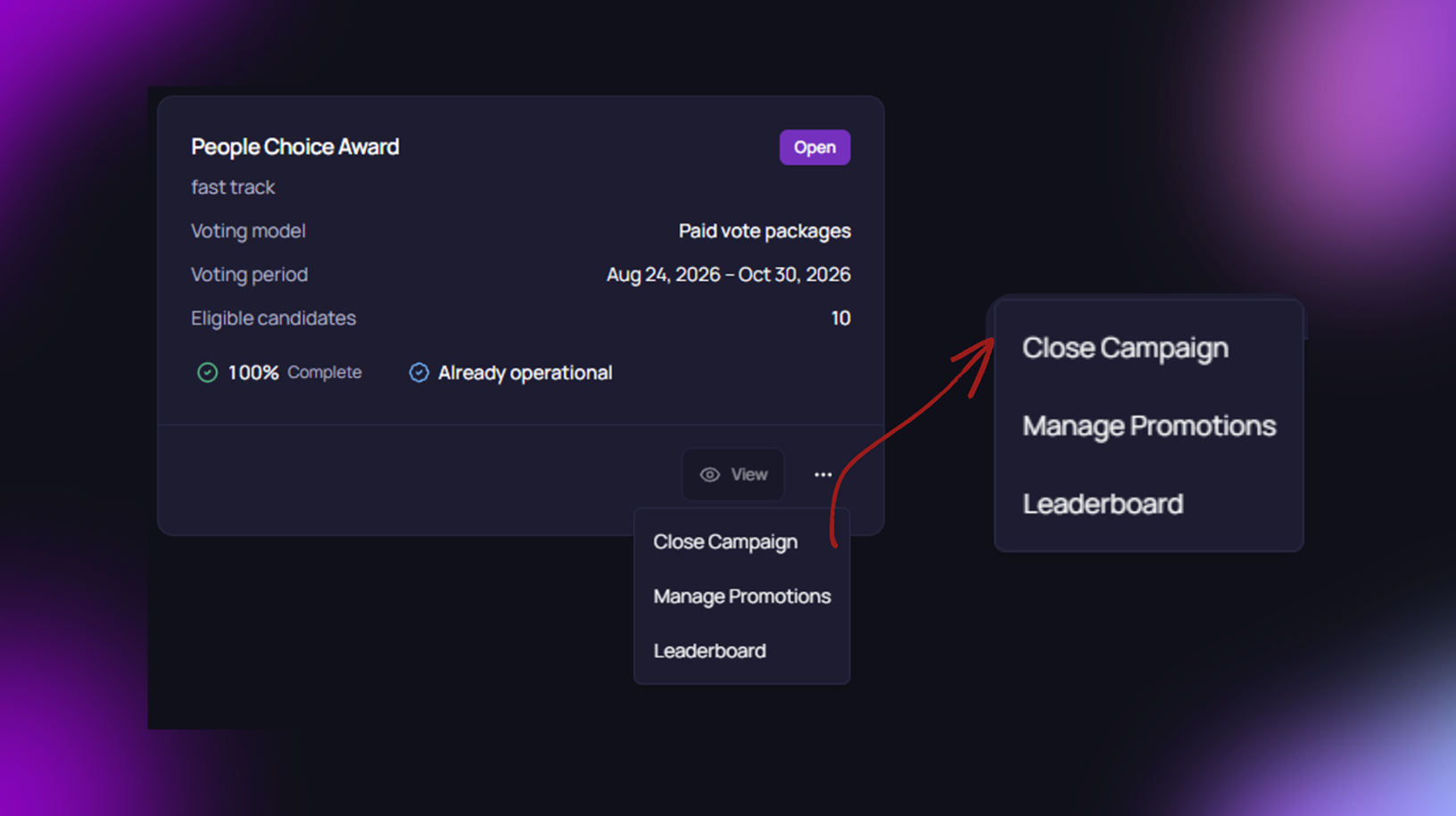
Manage Each Campaign
Close a campaign or open its leaderboard from the actions menu.
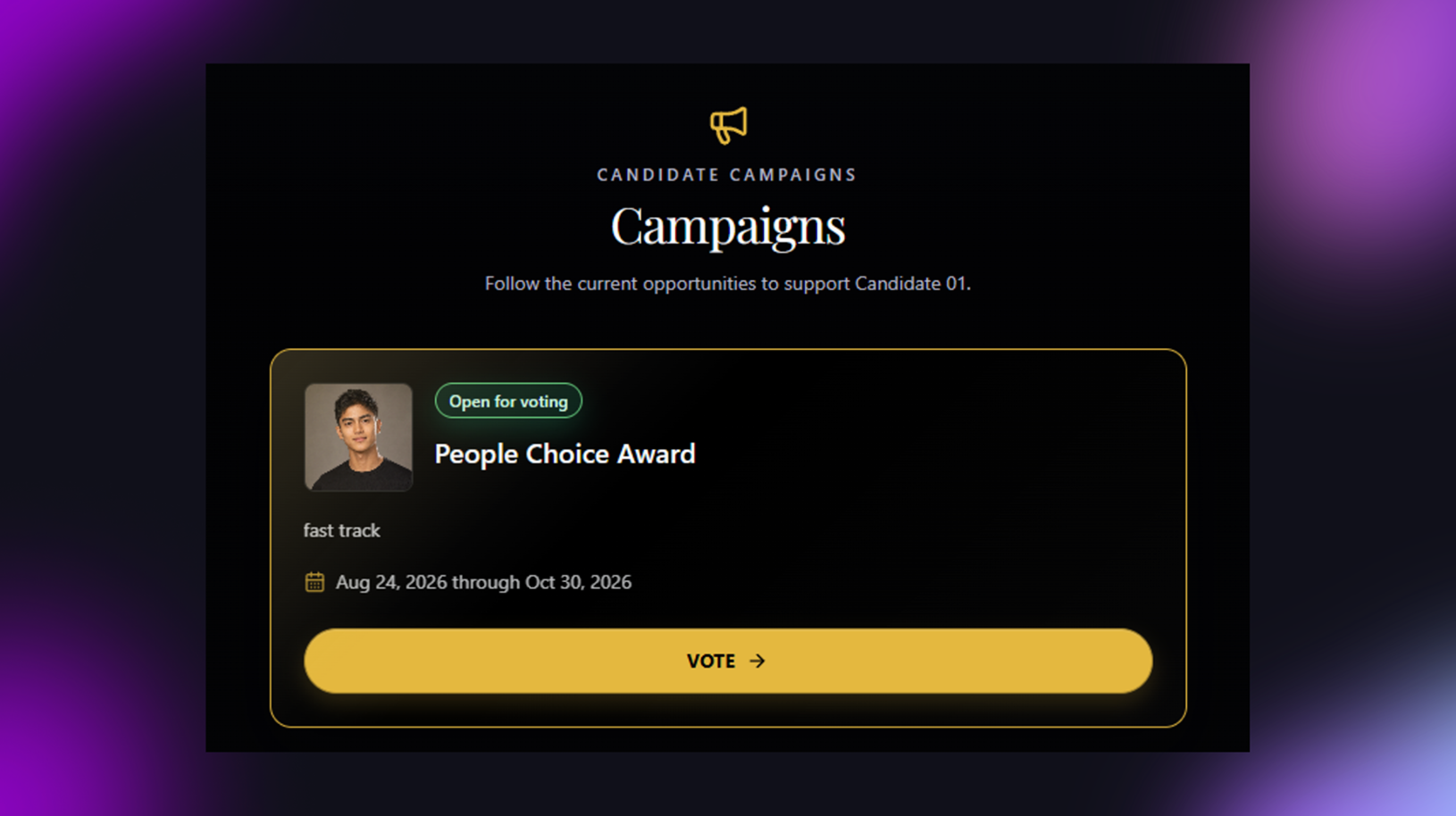
Microsite
Know If a Campaign Is Open
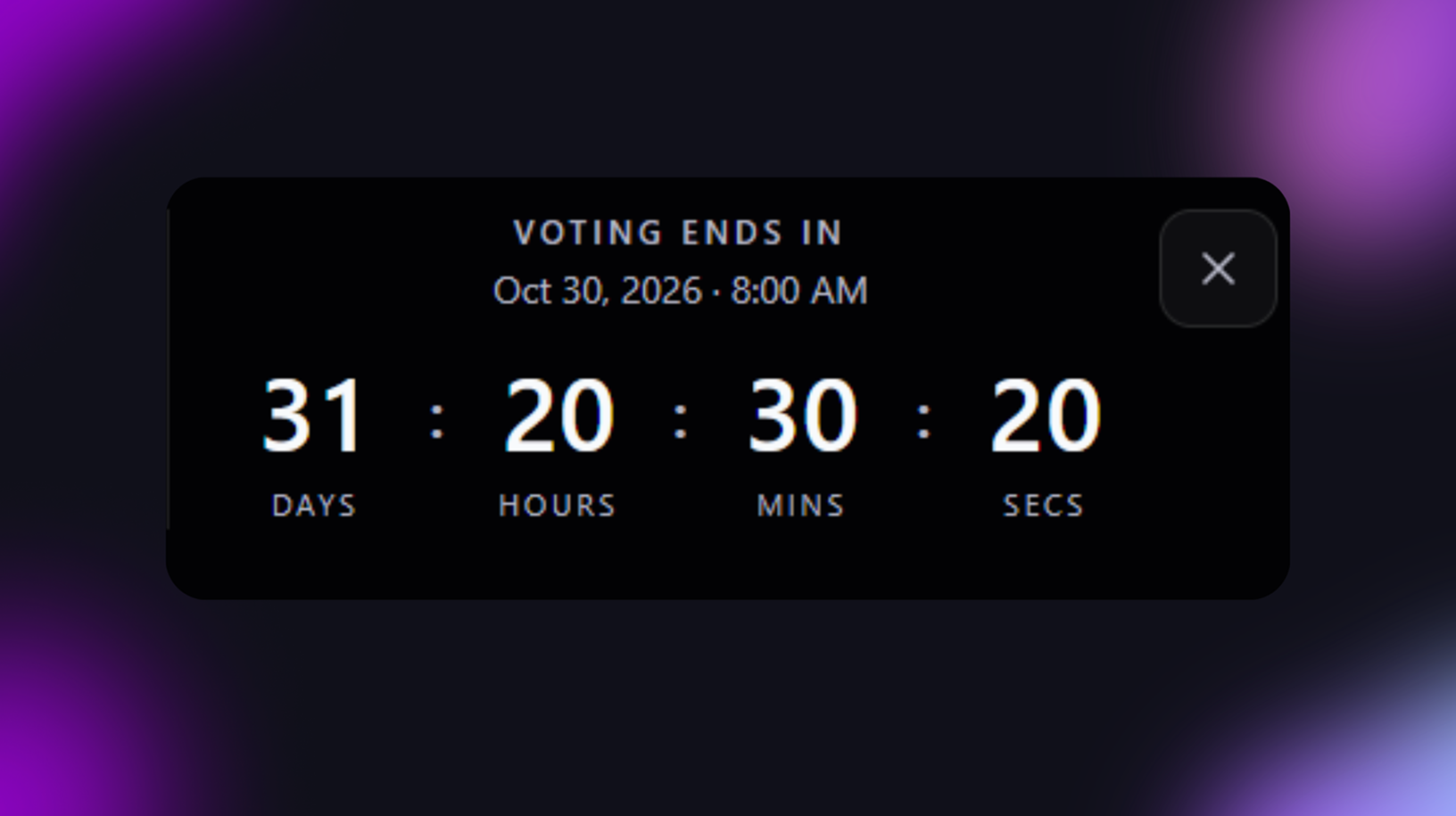
A “LIVE” tag and a countdown show how much time is left.
Perks
Dashboard
Microsite
Plan Everything Around One Even
Every campaign stays linked to its event, so nothing gets mixed up.

Always the Right Campaign
Each candidate's page shows the campaign that belongs to their event.

Launch With Confidence
A checklist shows what is missing, so you never go live by mistake.

Clear and Professional Look
Campaign names and descriptions show up neatly on the page.

Stay in Control
You decide when a campaign starts and when it closes.
Easy to Know What Is Happening
A clear tag and countdown show if a campaign is live and when it ends.
Campaign workflow
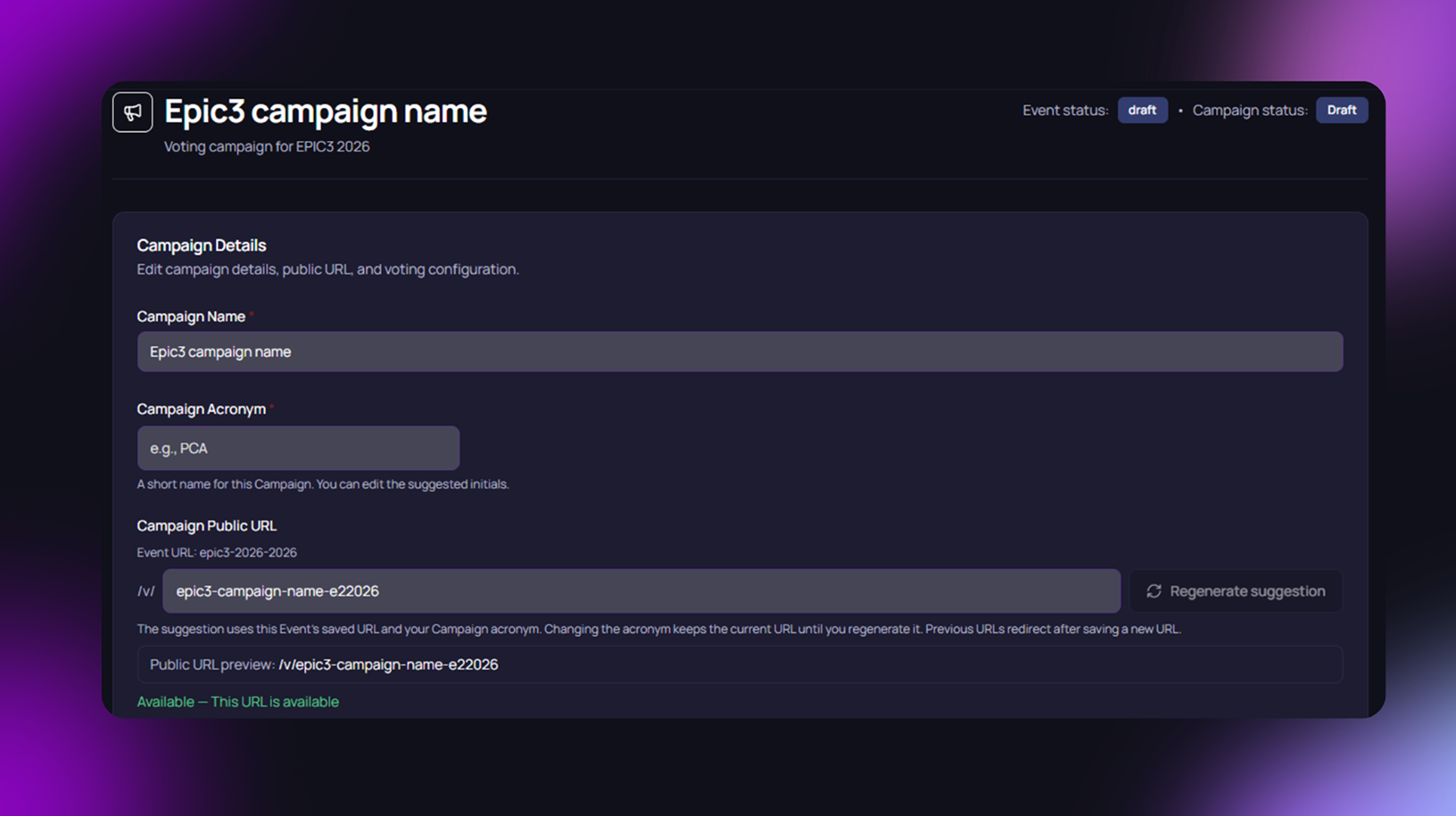
Step 1: Name the Campaign
Set the campaign name, acronym, and public URL.
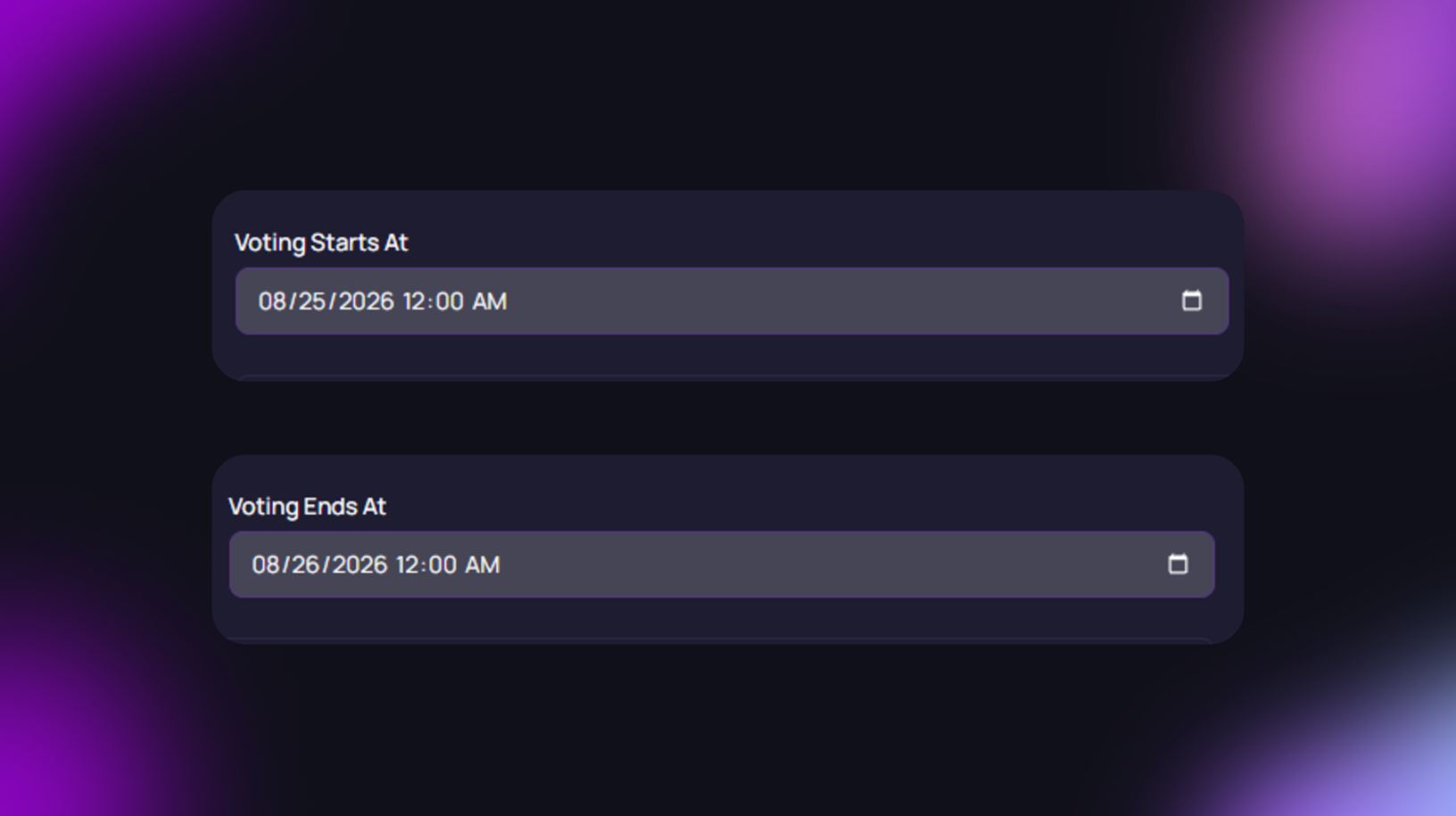
Step 2: Set Voting Details
Choose the voting model and set the start and end dates.
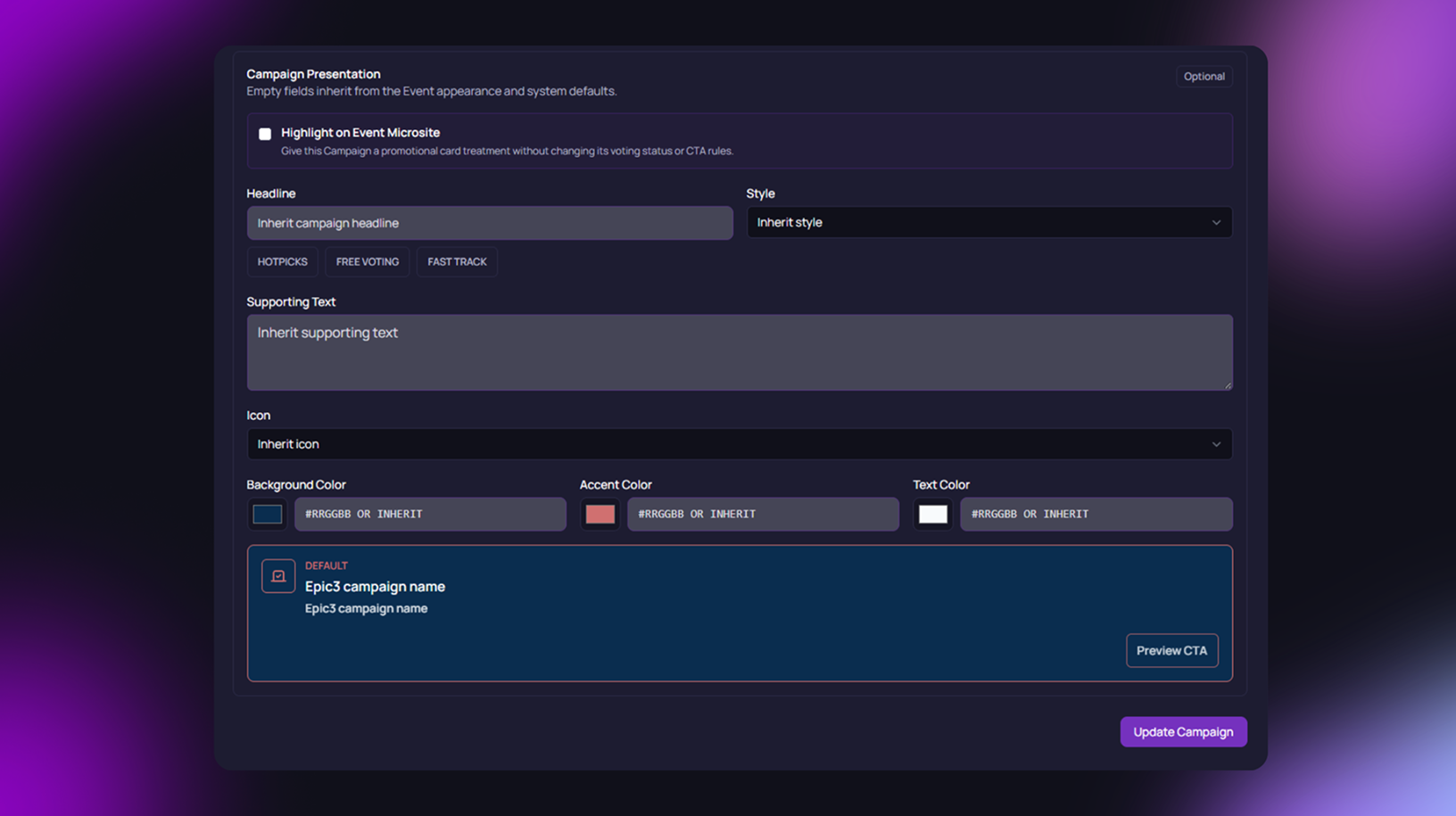
Step 3: Set the Presentation
Add a headline, style, and colors for how the campaign looks to visitors.
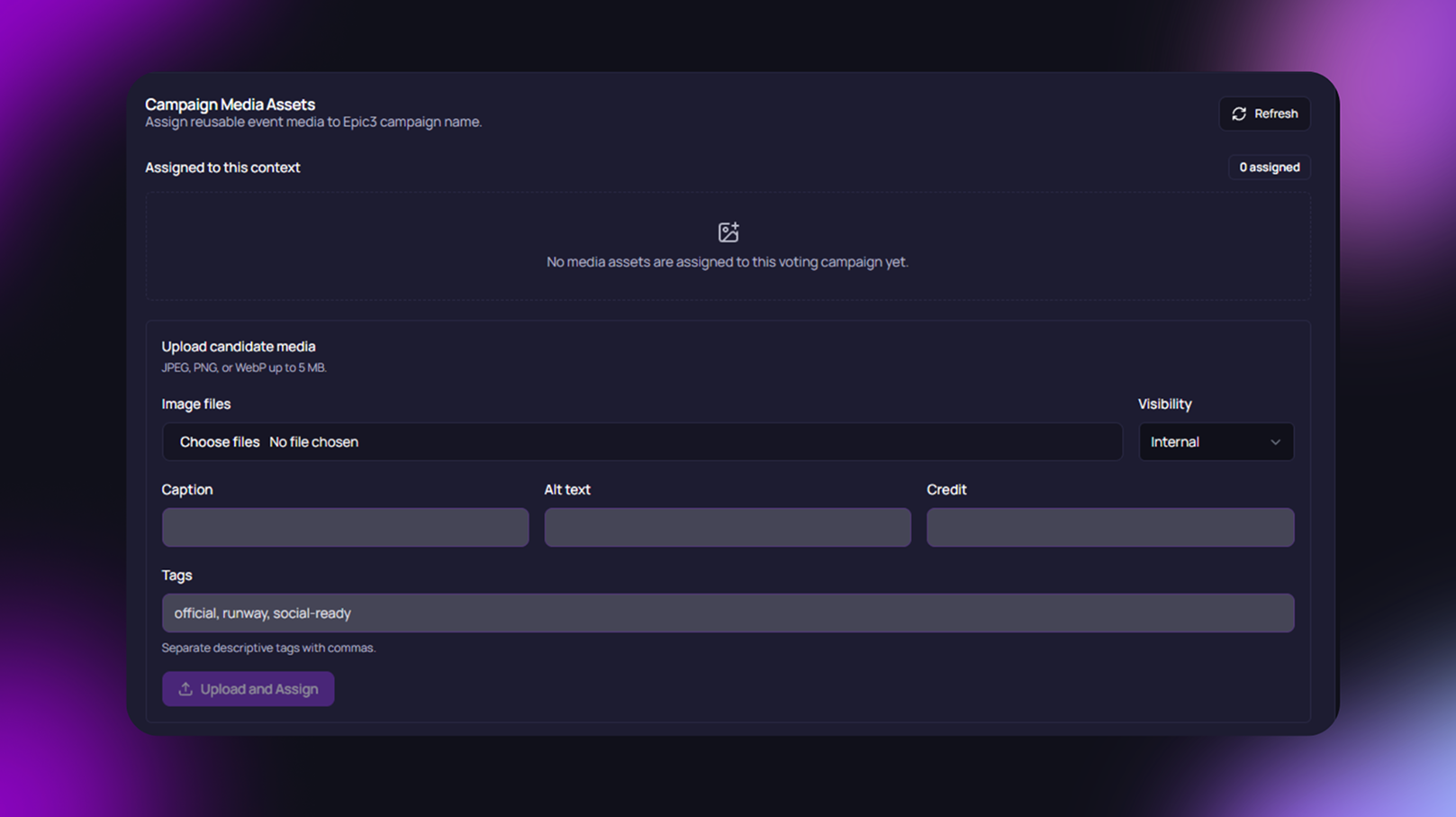
Step 4: Add Media Assets
Upload photos and files to use for this campaign.
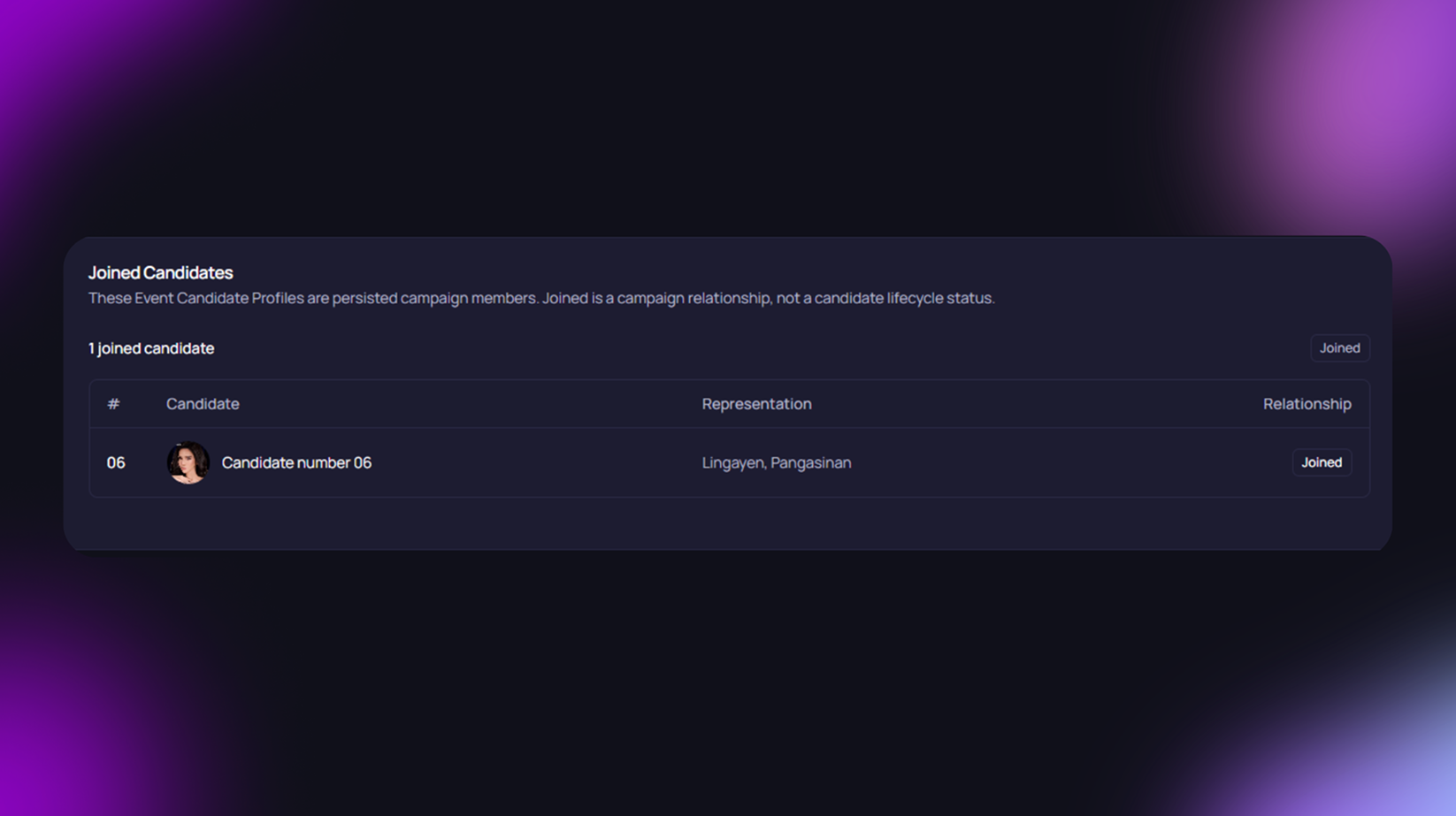
Step 5: Review Joined Candidates
Check which candidates have joined this campaign.
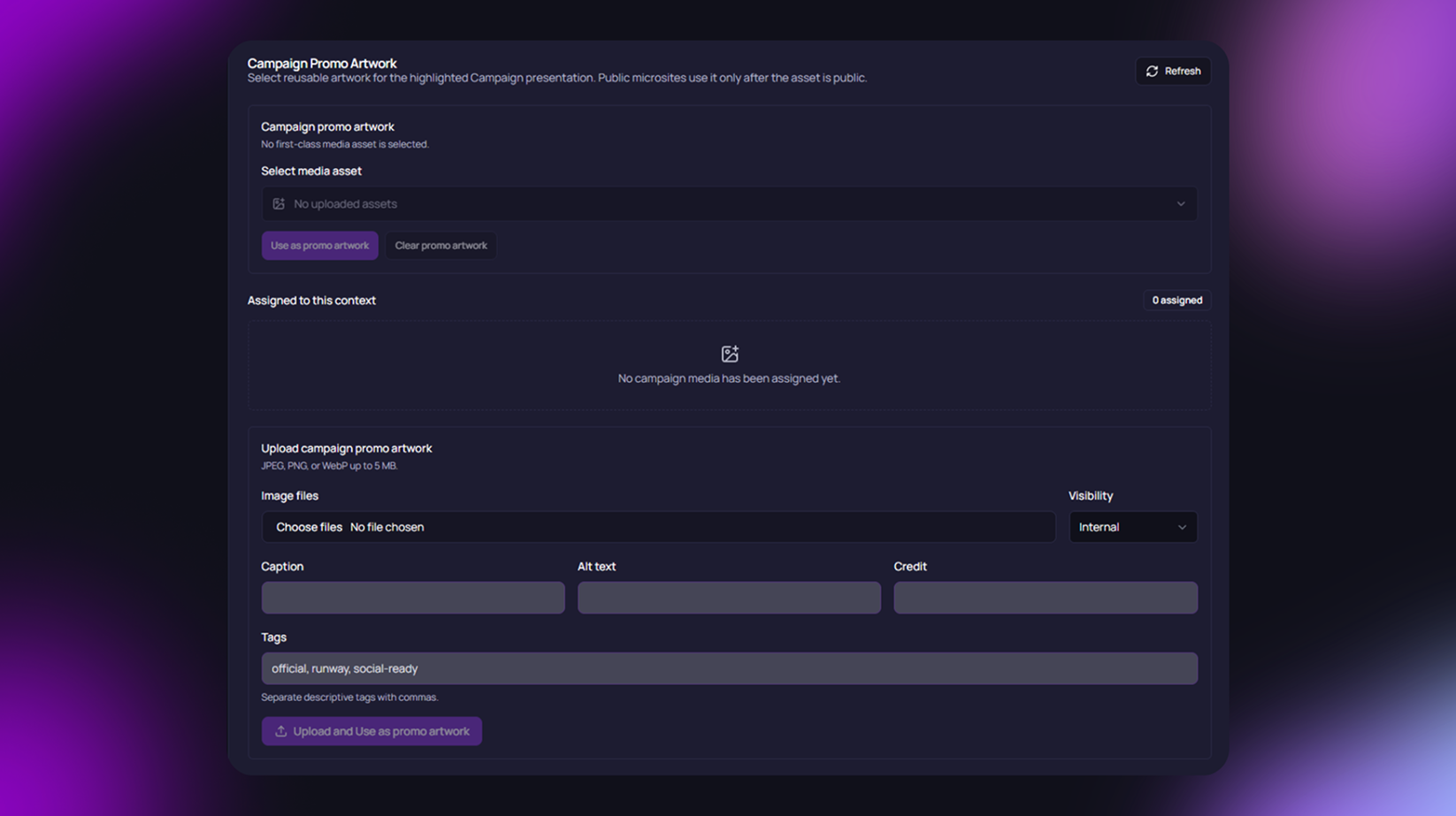
Step 6: Set Promo and Candidate Images
Add promo artwork or a different photo for a candidate in this campaign only.
Mobile
The event microsite adjusts to fit smaller screens, keeping key details like the event title, dates, and voting status easy to read. Visitors can browse and vote comfortably from their phones, wherever they are.
Tablet
On larger screens, the microsite makes full use of the space, showing more details like the countdown timer and campaign card side by side. This gives visitors a fuller view of the event without needing to scroll as much.
FAQ
Find clear answers about using PageantXero for your event.
How does the PageantXero workflow work?
The workflow starts with an organization, then an event, candidates, campaigns, public candidate experiences, voting or engagement, verification, and rankings or results. Teams can prepare these pieces before launching a live campaign.
Can an event have more than one campaign?
Yes. The approved MVP allows an event to have one or more voting campaigns. Campaign configuration and launch remain separate from the event record.
Does publishing an event automatically start voting?
No. Publishing an event makes the event available according to its configured visibility, but it does not automatically launch a voting campaign. Event publication and campaign activation are separate lifecycle decisions.
What is a campaign in PageantXero?
A campaign is a configured participation or voting activity connected to an event. It has its own lifecycle and may be prepared in draft before an organization decides to launch it.
Previous — Candidate Management
Prepare the event-specific candidate profiles and participation details that campaigns use.